
How To
The “how-to” page where you will find all sorts of helpful things about your new website.
Table of Contents
- Pages
- Adding a Sidebar Widget
- Page Attributes
- Menus
- Page Blocks
- Media Library
- FAQ
- Resources
- Team Bios
- Services
- Certificates
- Events
- Posts/News
- Options (social links, events page, footer logos)
- Forms
Pages
- In left menu, click ‘Pages’ (This will allow you to view all Pages that are currently built)
- If you want to build a new page, select ‘Add New’
- Once selected, you will be requested to ‘Enter title here’ for the page. URL will be auto-generated based upon what is entered into the “Enter Title” field. To change, click the Edit button that appears under field. (Permalink: This is also where you access your URL for draft pages.)
- The H1 for the page defaults to the page title, but to overwrite the H1 text enter the desired text in the title field under ‘additional page content’
- Add your header image by selecting an image from your media library using the header image field under ‘additional page content’
- Enter content into wysiwyg (instructions below)
- Join page blocks to the page (if desired) by clicking name in the left window of Page Blocks box. Anything on the right will appear on the front end. Click and drag to reorder. Click (-) to remove from page. (See Page Blocks section for details on how to build Page Blocks. These need to be built before joining to a page.)
- Enter SEO information in the Yoast settings at the bottom of the page. (You will need to add a Meta Title/Meta Description)
- On each page you will see a ‘Demo Block Toggle’ option. It defaults to yes. Uncheck if you do not want this page block displaying on the page (the content for the demo block is managed in ‘Options’ – directions below)
Content Editor (WYSIWYG)
- Type content directly into the wysiwyg in HTML Fields Tab or copy/paste from word processor with ease
- When copying/pasting, ALWAYS use the clear formatting button (small eraser icon) and/or paste as plain text (T on clipboard icon).
- Use special characters button for all special characters. If not, the coding may be different
Font Styles Selection
- Different font styles, including headers, are chosen from the Format drop-down menu and are labeled (Header 1, Header 2, etc.) Please see the Content Styles page for reference to your site’s font styles
- Highlight the text and then select the desired font style
Block Quotes In Content Editor
- Highlight text to be put into block quotes
- Select block quote button (“) next to the Italics.
Links
- Highlight the word/s which you want to create as a link and clicking on the insert/edit link icon.
- Enter the destination URL directly into the field or performing search.
- For internal links, insert page url only after your domain name. IE: www.website.com/about would be: ( /about).
- For external links, insert the entire url (http://www.website.com) and click Open in a New Window/Tab box.
- For telephone “click to call” functionality add tel:phonenumber, and for email insert: mailto:email@email.com
- To add a button, highlight the link, and in the format menu, formats: select CTA Button
- To break a link, highlight linked text and click Remove Link button (broken chain)
- Click Update
- To add a button to your link like this, highlight your link and go to the format dropdown at the top of the content editor>formats>button.
Inline Images
- To add an in-line image, place your cursor on the area where the image should appear, and click Add Media button above wysiwyg
- Click on the little chart symbol to open the media library
- Scroll to find an image or search using field in top right corner, select it, then click Insert Into Page button
- Upload and find the image on your computer (EDIT ALL IMAGES IN IMAGE EDITING SOFTWARE BEFORE UPLOADING TO FILEBIN PLEASE) and upload. Then select the image and click insert.
- Once the image is in place, click on image to reveal edit toolbar. Choose an alignment and add vertical/horizontal space if necessary.
- Click Update
SEO Settings
- Search Engine Listing Tab (Yoast settings at the bottom of the page editor)
- Enter Title tags (max. 70 characters)
- Enter Meta Description (max. 140 characters)
- Social Networks Listing Tab
- (This is the pre-determined information that you want to include if someone were to Share your page or story. Mostly used in blog posts, or articles.)
- Enter Title
- Enter Description
- Upload Image
- (This is the pre-determined information that you want to include if someone were to Share your page or story. Mostly used in blog posts, or articles.)
Home Page
- The standard content editor that appears just below the page title will overlay on the hero image
- In the ‘additional page content’ area select a hero image and enter the title text into the content editor that you wish to appear over the image in the home hero area. Add your hero image.
- Under ‘Additional content – home’ add the image, CTA, and link in the given fields.
- Set link type to internal or external.
- Add content under the image columns in the ‘featured content text area’
- Enter your SEO info in the Yoast plugin.
- Join page blocks if desired
Page Attributes
Underneath the publishing tools at the top right is Page Attributes. This is where you can assign a page to a parent page.
- If you assign a page to a parent page it will change the url structure of the page.
- If ‘new page’ is assigned to ‘old page’, its url will change to old-page/new-page
- Ordering pages in the menus is managed in Menus. (directions below)
Menus
- To add pages to your menus and to structure sub pages, navigate to Appearance> menus in the left wordpress menu.
- Select the menu you wish to edit via the dropdown at the top of the page
- CTA Menu 1 is the ‘find accredited organizations’ button
- CTA Menu 2 is the ‘get accredited’ button
- About IAS and Quick links are the menus in the footer
- Team Menu shows up on the Board page as a sub menu
- Find the page you wish to add to your menu from the selection area on the left. Select all applicable pages and add to menu.
- Once in the menu, drag and drop the pages to reorder or set as sub pages.
- To set as a subpage, drag the page so it appears indented underneath the primary page.
- The menu label defaults to the name of the page but this can be overwritten. Click the arrow that appears all the way to the right of the page label and enter your title in the ‘navigation label’ field. You can delete menu items in this section as well.
- To add a custom link to your menu (external link or pdf), select custom link from the left options area, enter the link and label, and add to menu.
Adding a Sidebar Widget
- In Appearance> Widget Areas create and label a new widget area and assign it to the relevant page(s) with the check box fields below. This will create a right sidebar widget area on the desired pages like the example content styles page.
- To create a widget area for a product, select the second tab ‘products’ under ‘conditions’. Here you can select a product entry (or entries) to assign your widget area to.
- Once this is created navigate to the left WP menu and choose OMS Widgets.
- Create the new content for that specific sidebar. You have options for open content, image, video, or map. Choose the correct type, and complete the entry.
- Navigate back to the left menu, Appearance > Widgets.
- Select the widget area you created from the list on the right.
- Click and drag the ‘OMS persistent widget’ from the options on the left into the corresponding widget area on the left.
- Choose the entry you completed in OMS Widgets via the drop down menu.
- If you are adding more than one sidebar element such as text, an image, etc., you only need to create one sidebar area.
- Drag/drop the OMS Persistent widget into the sidebar multiple times until all of your items have been added. Continue to select the different widget sections from the drop down menu. If you want to reorder them, just drag and drop!
Page Blocks
Page Blocks are created separately from pages, and then joined to the desired page(s). They do not appear on your site unless they are assigned to a page.
- In left menu, click Page Blocks (This will allow you to view all Page Blocks that are currently built in your CMS)
- If you want to build a new Page Block, Select Add New. You can also edit an existing page block.
- To build a new page block: Enter Title
- Please note that the title is not associated with SEO in page blocks, so you will want to name it intuitively (so that you know how to grab it later when joining to a page).
- Hidden: Select No (recommended) from the drop-down menu
- If hidden is set to yes, the page block will not appear on the pages it is assigned to.
- Header: This field is optional, but any text in here will center above the content area(s)
- Hide on Mobile option allows you to hide page blocks on mobile devices to increase speed if desired.
- Layout: Select from the available list based on the type of block being created (full-width, two column, three column) Details below. Refer to available designs on page block styles.
Page Block Content Options
- Select your layout from the dropdown menu (full-width, two column, three column)
- With each column in the page block, you will need to select the type of content from the drop down menu next to ‘Column X Type’ (image, text, video, gallery)
- After selecting the content type, enter your text or image in the given fields that appear.
- To create a Call to Action button, highlight the desired text, link it, and in the format drop down menu select ‘button’.
- Set the background image for the page block using the ‘background image’ button
- Video page blocks require an image preview. Enter the url of your video and add the image from your media library.
- Reference the style guide for the correct image sizing info
- To Create a testimonial, select ‘testimonial’ as the full width page block type.
- Create the testimonial separately in the wordpress menu option ‘testimonials’. Name the testimonial and enter your content in the editor.
- After selecting the content type, enter your text or image in the given fields that appear.
- Scroll back up and “Publish” your Page Block. Your new Page Block has been created, however, until it is joined to a page, it will not be visible.
- To join your page block to a page, go to the page you would like to add it to and select the name of the page block(s) in the Page Block section. For information on building a page, see the Page section above.
- The order of the page block, once selected, will dictate how they will appear on the page. Blocks can be re-ordered as needed and once complete select the Red Update button to save your changes and Publish.
Resources
- Name your resource and add your content in the wysiwyg editor.
- Under ‘resource type’ specify if the resource is a download or a link
- If it’s a download, select the PDF file from your media library. If it’s a link provide the link.
- Enter your sidebar title and content in the fields below
- Tag the resource to a category(s) using the selection to the right
- Resources are added to the Documents page
Team Bios
- In left menu, click Team Bio (This will allow you to view all Team Bio pages that are currently built)
- If you want to build a new bio, Select Add New you may choose to edit an existing file
- Enter their name as the title of the team bio entry.
- Enter Position and add bio image
- Enter bio content in wysiwyg editor
- Enter SEO data
- Add social media links and contact info if desired
- Under ‘additional page content’ add the header image for their bio page
- Click red Update button to save your changes and Publish
- Join the bios to the team page using the ‘team bio join’ at the bottom of the page editor (just like you would with page blocks.
- **Make sure this page is set to ‘team landing’ under Page Attributes>template
- Reorder the bios on the team bio page by dragging and dropping
- Edit the content on the top of the team landing page within pages
Services
- Name your service
- Enter your content into the editor just like you would with a page
- Enter your SEO info into the yoast plugin
- Join pages blocks if desired (these only show up on the overview tab)
- Tag the corresponding criteria from the options in the right column. Add new criteria using the ‘add new criteria’ button
- Under ‘Additional page content -services’
- Overwrite the h1 if desired using the title field
- set your header image
- add sub text to overlay on the image in ‘header content’
- use the red ‘add button’ button to add a linked button on top of the header image
- Under ‘important documents’ join all the corresponding documents. These appear under the ‘documents’ tab
Certificates
- Name the certificate and attach the certificate pdf file from your media library
- Complete the fields below (name, organization…) These act as sorting filters on the ‘find an accredited organization’ forms.
- Select the criteria associated with the certificate from the checkbox selections in the right column.
Events
- Events are auto added to your events page (the content at the top of the events page is edited in ‘Options’)
- Name the event and enter your content in the editor
- Add time/Date, location (this generates the map in the sidebar) and price/website if desired.
- Enter your SEO info
- Assign the event to a category using the sidebar selector. This enables the user to filter the events on the events landing page.
Posts/News
- In left menu, click Posts. This is where you manage the content in the blog and news section of your site.
- Select Add New
- Enter Title
- URL will be auto-generated based upon Title. To change, click the Edit button that appears under field
- Enter post copy in wysiwyg
- If copy contains links to outside sites, be sure to create link as Open in new tab.
- SEO Settings
- Search Engine Listing Tab
- Enter Title tags (max. 70 characters)
- Enter Meta Description (max. 140 characters)
- **If fields are left blank, search engines will use Blog post title for Meta tags and first 140 characters of post for Meta Description
- Social Networks listing Tab
- Enter Title:
- Enter Description
- Upload Image
- Search Engine Listing Tab
- Check categories box from list
- Anything assigned to the ‘News’ category will appear in the news section, everything else will appear in the blog.
- Add New Category by clicking +Add New Category link at the bottom of Categories panel and entering category name
- Save by clicking Add New Category button
- Optional – Set featured image from Media Library
- When complete, go to Publish panel
- you may choose to Save Draft
- Click Edit link under Save Draft button to set post as Pending Review
- Visibility: default is Public. To change, click Edit link
- click OK button to save changes
- Publish Immediately: can be changed by clicking Edit link
- Enter publish date, click OK button
- Preview Draft, or click blue Publish button
- Ignore the additional page content fields
Media Library
- Click Media, Library, Add New
- Drop files into window or click Select Files button
- To Edit Images or other Media you may view as a list or Media Grid View
- Inside the Media Grid, media items are displayed in a thumbnail grid for ease of navigation. Click any media item to edit the image directly; however, we recommend that you use photo editing software like Photoshop before uploading images to Media Library. In this view, you may also edit the image metadata or media item metadata.
- Media library can be filtered by type or date and is searchable by title
FAQs
Similar to Pageblocks, FAQs are created separately and then joined to pages.
- Select FAQs from the left wordpress menu
- Add a new FAQ and name it so you can find it when adding it to the page. (this name is fro admin purposes only)
- Enter your question and answer into the given fields at the bottom.
- Join your FAQ to the page by using the join tool at the bottom of the desired page.
Options
- The Options section is where you can edit the social media links in the footer
- Add a social media icon by clicking ‘add row’ and selecting your icon and providing the link to the account. This edits the links/icons that appear at the very bottom of your site.
- Edit the text under ‘Event landing page’ to edit the text that appears on the top of this page
- Add the logos that appear in the footer
- select the image using the ‘add image button’
- Use the red ‘add row’ button to add more logos
Forms
- To create a new Form, select “Add Forms” in the left navigation or “Add New” on the Forms page.
- On the left side of the screen are all of the form fields that are available to you. Simply click on a form field to have it appear on the right side of the screen. Clicking on the area will open up the field, allowing you to customize the “Label” and set “Restriction Settings” (Required field)
- Be sure to Name and Save your form.
- Next select the “Email & Actions” tab
- Edit redirect, email admin and email user settings for each form. Click “View all types” to see your available options.
- Redirect – redirects to thank you page (You must build a Thank You page in the Pages section, and then add the URL to this action. We recommend this for tracking goals in Analytics.)
- Email admin –You can customize the way each submission hits your inbox: from name, address, to email (very important), subject, and fields.
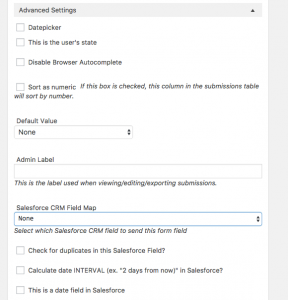
- Salesforce Integration – If you would like your form fields to automatically be sent to Salesforce, you will need to set that in two places: The Settings Tab and on the form itself. (Each field needs to be mapped to a field in Salesforce)
- Under Settings, you need to check the box for “Send this form to Salesforce?”
- Then, on the form itself, you will need to map each field from your form to the field that you want it to be in Salesforce. This is done on the “Advanced Settings” tab on each element (ie First Name) – Select the field from the “Salesforce CRM Field Map” dropdown.
- Once the form is complete, publish your form. Then copy the short code for your form and paste into your wysiwyg on the page that you want to add it to. (ie: Contact, Application, etc.)


